

If you have ever tried to convert a video into another format, pull an audio stream from a video clip, zip a lengthy video, convert a video clip into a GIF, or just found your video editor application asking for FFmpeg, perhaps it has lead you to ponder, “What the heck is it and how do I add this software on my operating system? The answer is more likely much simpler than it appears; while it functions like a desktop application, it exists primarily as a terminal (command-line) interface rather than an enormous window full of clickables.
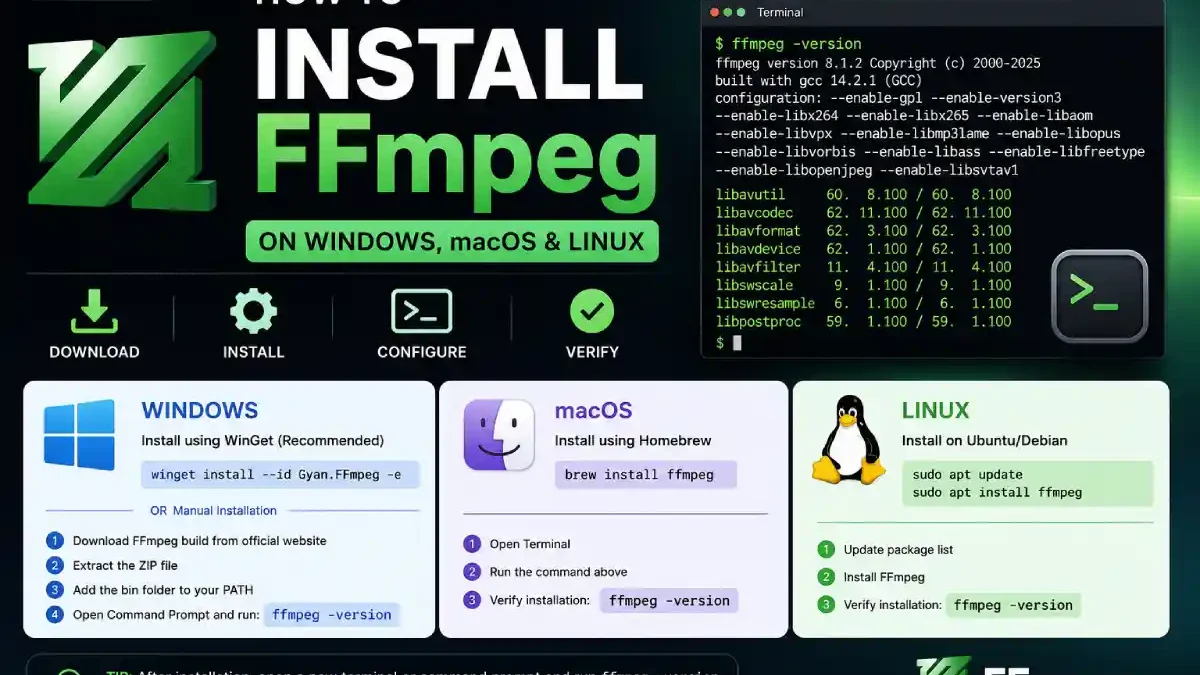
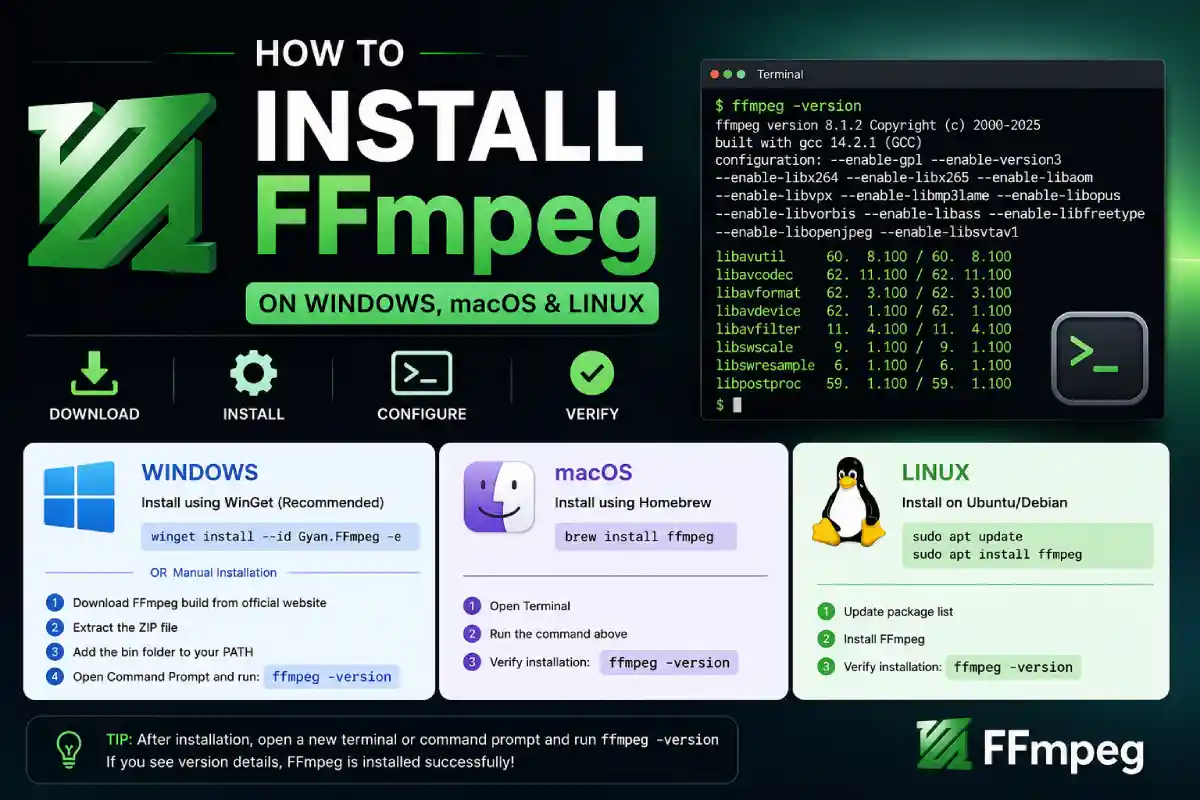
This guide describes how to get your FFmpeg working on your Windows, macOS, or Linux system, including the simplest methods of installation, what to do about your system PATH, how to make sure it works, common errors and problems and just how FFmpeg installers for different OS-en differ from each other. A cross-platform solution for recording, converting, and streaming audio and video, its website says, which, as of today, provides the latest release as FFmpeg 8.1.2 (as part of the 8.1 branch).
Table of Contents
What Is FFmpeg?
FFmpeg is a free, open-source multimedia framework that processes digital audio, video, and other media formats. FFmpeg is not just a converter; it is a suite of powerful tools and libraries that can handle all kinds of audio, video processing, and streaming, from simple conversions to sophisticated tasks.
For example, you can use FFmpeg to:
- Convert MP4 to another video format
- Convert video into an audio file
- Reduce video file size
- Change video resolution
- Extract individual frames
- Cut sections from a video
- Join multimedia files
- Add or remove audio streams
- Convert audio between formats
- Create GIF files
- Inspect multimedia files
- Stream or process media automatically
One reason FFmpeg is so widely used is its flexibility. Many other applications use FFmpeg internally without requiring users to interact with it directly.
What Does “Installing FFmpeg” Actually Mean?
This is a vital concept for beginners to grasp.
Normal Windows application installations: you download an .exe installer, you click next, agree to a license and you’re done.
FFmpeg often works differently.
Source code for FFmpeg and binaries packaged by external contributors are available on the official FFmpeg project website for Operating Systems like Windows and macOS. Once you have anFFmpegbuild, the computer needs to be able to find the ffmpeg executable. That comes in with the PATH environmental variable.
What Is PATH in FFmpeg?
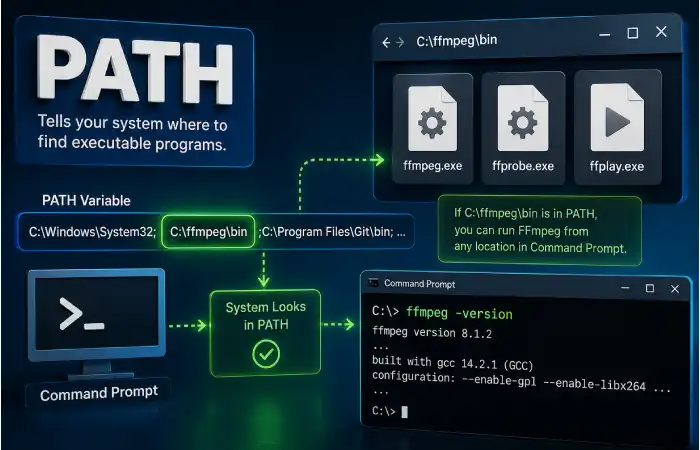
PATH is a setting in your operating system that specifies to your computer where to look for executable programs (applications) when you just type their names in the prompt or terminal.
For example, when FFmpeg is at:
C:\ffmpeg\bin
and that folder has been added to Windows PATH, you can open Command Prompt and simply type:
ffmpeg
Windows will know where to find the program.
If PATH is not configured, it will have to go to the FFmpeg folder every time you execute FFmpeg.
This is one of the most common reasons beginners see an error such as:
‘ffmpeg’ is not recognized as an internal or external command
The program may actually be installed correctly. The computer simply does not know where it is.
How to Install FFmpeg on Windows
A Few Different Ways of Installing FFmpeg on Windows. For most novice users, it’s recommended to install the latest version of FFmpeg via a package manager, which handles much of the setup automatically.
The FFmpeg download page provides instructions and links to official FFmpeg builds for Windows, such as gyan.dev and BtbN.
Method 1: Install FFmpeg with WinGet
If you are on a modern Windows machine, a good alternative is WinGet. Microsoft’s own Windows package manager will make this a much easier task. The steps involved are fairly similar, but a bit more direct than using an install script or the store: Type into Cmd or PowerShell.
winget install –id Gyan.FFmpeg -e
Allow the package manager to complete the installation.
Once it finishes, close the terminal and open a new Command Prompt or PowerShell window.
Then type:
ffmpeg -version
Assuming you successfully installed it, you’ll see output showing the FFmpeg version and the libraries built into the package. This approach is particularly convenient because it completely avoids having to move any files yourself and configure every bit of the installation for your use.
Method 2: Download a Windows Build Manually
Alternatively, for a manual install on Windows, visit the official FFmpeg download page.
Navigate to the ‘Windows’ area and choose a provider from the list.
Once you have downloaded the archive, unpack it with an archive tool (like 7-Zip or WinRAR).
Typically, you will end up with a folder hierarchy that contains a ‘bin’ directory, within which are some executables (such as).
ffmpeg.exe
ffprobe.exe
ffplay.exe
The most important file for normal FFmpeg commands is:
ffmpeg.exe
Add FFmpeg to Windows PATH
If you manually downloaded FFmpeg, adding its bin directory to PATH makes everyday use much easier.
Suppose your FFmpeg folder is:
C:\ffmpeg
And the executable is located at:
C:\ffmpeg\bin\ffmpeg.exe
You would add:
C:\ffmpeg\bin
to the Windows PATH variable.
A simple way to do this is:
- Open the Windows Start menu.
- Search for Environment Variables.
- Select Edit the system environment variables.
- Open Environment Variables.
- Find the Path variable.
- Choose Edit.
- Add your FFmpeg bin folder.
- Confirm the changes.
- Open a new Command Prompt.
Then test:
ffmpeg -version
If the version information appears, Windows can now find FFmpeg from any directory.
How to Install FFmpeg on macOS
One of the greatest strengths of FFmpeg is especially among the users of the mac OS.
Homebrew is a package manager for the command line; it allow to install it through simple commands on terminal.
So if you already have Homebrew installed, type this in the terminal:
brew install ffmpeg
After installation, verify it with:
ffmpeg -version
To install FFmpeg if you haven’t already, either install Homebrew first (following instructions at the official Homebrew site), and then install FFmpeg. There are also macOS build instructions at the FFmpeg download site.
Why Homebrew Is Convenient
However, it is easy because:
Homebrew saves you time by downloading an archive, uncompressing that archive, locating an executable binary, and setting up those paths; it directly installs an application when you simply type.
brew install ffmpeg
Homebrew handles the package installation process.
It also makes future updates easier. When you want to update installed packages, Homebrew provides commands for managing them.
How to Install FFmpeg on Linux
Linux is slightly different because the installation process usually depends on your distribution.
For Ubuntu or another Debian-based distribution, FFmpeg is commonly available through the system package repositories.
Open Terminal and run:
sudo apt update
sudo apt install ffmpeg
Once the installation finishes, check it with:
ffmpeg -version
On Fedora-based systems, the command can be:
sudo dnf install ffmpeg
The exact package availability can depend on your Linux distribution and enabled repositories.
The official FFmpeg download page provides links for Linux packages and static builds.
Why Linux Installation Can Vary
Linux is not one single operating system environment.
Ubuntu, Debian, Fedora, Arch Linux, and other distributions have their own package-management systems and repositories.
That means the best FFmpeg installation method for one distribution may not be the best choice for another.
For beginners, the distribution’s normal package manager is usually a sensible starting point.
FFmpeg Installation Methods Compared
There is no single installation method that is perfect for everyone. The right option depends on your operating system and how much control you want.
| Installation Method | Best For | Difficulty | PATH Handling | Main Advantage |
| WinGet | Windows beginners | Easy | Usually simplified | Quick installation |
| Manual Windows build | Advanced Windows users | Medium | Usually manual | More control |
| Homebrew | macOS users | Easy | Usually handled | Simple package management |
| APT | Ubuntu/Debian | Easy | Usually handled | Uses system repositories |
| DNF | Fedora-based Linux | Easy | Usually handled | Native package management |
| Static build | Advanced users | Medium | May be manual | More control over version/build |
The important thing is not to choose the most complicated method simply because it sounds more professional.
For everyday users, a straightforward package-manager installation is often the least frustrating route.
How to Check Whether FFmpeg Is Installed
After installation, always perform a quick test.
Open Command Prompt, PowerShell, Terminal, or your Linux shell and type:
ffmpeg -version
A successful installation should return information about the FFmpeg version and its components.
You can also check where the executable is located.
Windows
where ffmpeg
macOS or Linux
which ffmpeg
These commands are useful when you have multiple FFmpeg installations and want to know which executable your computer is actually using.
For example, if Windows returns a path to ffmpeg.exe, that confirms the command is being found through PATH.
What Are FFmpeg, FFprobe, and FFplay?
When you download a full FFmpeg build, you may notice several executable files.
They are not identical.
FFmpeg
ffmpeg is the main multimedia processing command.
It performs tasks such as converting, encoding, decoding, filtering, recording, and streaming.
Example:
ffmpeg -i input.mp4 output.mp4
FFprobe
FFprobe is primarily used to inspect multimedia files.
For example:
ffprobe input.mp4
It can provide information about streams, codecs, resolution, duration, frame rate, audio channels, and other media properties.
FFplay
FFplay is a simple media player based on FFmpeg libraries.
It can be useful for quickly testing multimedia files without opening a full media player.
Your First FFmpeg Command
Once FFmpeg is installed, you can try a basic conversion.
Suppose you have:
video.mp4
You could run:
ffmpeg -i video.mp4 output.mkv
Here:
- ffmpeg starts the program.
- -i identifies the input file.
- video.mp4 is the source.
- output.mkv is the destination.
FFmpeg automatically determines much of the required processing from the input and output formats.
This simple command gives you a feel for how FFmpeg works.
The official FFmpeg website itself demonstrates the same basic command-line concept for multimedia conversion.
How to Convert Video to Audio With FFmpeg
One of the most common beginner tasks is extracting audio from a video.
For example:
ffmpeg -i video.mp4 audio.mp3
This tells FFmpeg to read the video and create an MP3 output.
You can set further options to have even finer control on quality, though it’s definitely a good idea to understand the basic command first.
When you understand what each option in FFmpeg does, it becomes much simpler to grasp what’s actually going on than just pasting lengthy commands without understanding.
How to Reduce Video Size With FFmpeg
Surprisingly big videos take up gigabytes of storage.
FFmpeg can convert your videos with an entirely different codec, quality settings, resolution, or bitrate. As a conversion from H.264:
ffmpeg -i input.mp4 -c:v libx264 output.mp4
For a beginner, however, video compression is an area where the command matters greatly.
Reducing file size usually involves a trade-off between:
file size ↔ image quality ↔ encoding time
A very small file may look noticeably worse. A high-quality file may remain large.
That is why there is no universal “best compression command.”
Common FFmpeg Installation Problems
“FFmpeg is not recognized”
For Windows, it typically is caused when the system isn’t finding ffmpeg.exe. It may be due to two possibilities: Ensure FFmpeg is actually installed and its bin directory has been added to your system’s PATH. Close and relaunch Command Prompt.
“command not found: ffmpeg”
On macOS or Linux, this usually means the shell cannot locate the executable.
Check the installation first.
For example, on macOS:
brew list ffmpeg
You can also try:
which ffmpeg
FFmpeg works in one terminal but not another
This can happen when one terminal session has an older PATH configuration.
Close the terminal completely and open a new one.
If the problem continues, inspect the PATH configuration.
A program says FFmpeg is missing
Some applications require FFmpeg to be installed separately.
Others include their own FFmpeg executable.
If an application specifically asks for the FFmpeg executable path, locate the ffmpeg program and point the application to that file.
Do not assume that every application expects the same folder.
Should You Download FFmpeg From Any Website?
This deserves proper attention.
You may have searched to download FFmpeg from a lot of sites. Few are real, while most give you junk that is out of date, patched, or not applicable.
To make it really safe, use the direct official site download page here.
Source from the Official FFmpeg site: it stated, “We release several different archives, including Source Code and Compiled Binaries, for the various platforms to aid users. For “Windows”. This may include a direct link to find and download precompiled Binaries provided by several vendors, which are recommended/available directly by our main release team.”
The difference will not be that many, but still it is there.
FFmpeg Source Code vs. Prebuilt Builds
A typical source of misunderstanding here is the distinction between source code versus a compiled build. Source code consists of the human-readable program code that is compiled to create FFmpeg. What is often referred to as prebuilt binary in most of the places is a already-compiled application that you can run on a system that supports it.
Normal users normally want to end up with the prebuilt binary.
Only developers might want to get sources to have it compile with special options etc. FFmpeg official web site has the source downloads, and links to some compiled packages or builds for Windows, Linux, macOS.
Is FFmpeg Free?
Yes, FFmpeg is a freely available, open-source application, but its license situation gets much more complex in some scenarios, for instance, if a developer redistributes builds or embeds FFmpeg components in a closed-source application or commercial software.
If an individual user wants to download FFmpeg and use it to manipulate their personal audio or video files, there normally is no money involved.
The developer still needs to consider the specific FFmpeg license terms and the build configuration that is distributed.
The point of distinction is that just “free to use” doesn’t mean the conditions are automatically dropped when you redistribute in all situations.
Why Is FFmpeg So Popular?
FFmpeg has survived and remained important because it does something remarkably useful: it provides a common toolbox for working with multimedia.
Video formats change. Codecs evolve. Cameras create different file types. Streaming platforms use different technologies. Editing applications need to read and write many kinds of media.
FFmpeg sits underneath a huge amount of this activity.
Its command-line nature can look intimidating at first, but that same design makes it extremely powerful for automation.
A single command can be placed into a script and repeated across hundreds or thousands of files.
That is something a conventional point-and-click converter may not handle as elegantly.
What Should Beginners Learn After Installation?
Once you know how to install FFmpeg, do not feel pressured to memorize dozens of commands.
Start with a few fundamentals:
1. Input files
Learn how FFmpeg identifies an input:
-i input.mp4
2. Output files
Understand how the final filename determines the output container:
output.mkv
3. Codecs
Learn the difference between a container and a codec.
MP4, MKV, and MOV are containers. H.264, H.265/HEVC, AV1, and AAC are examples of codecs.
4. Encoding
Encoding changes multimedia data into a selected codec and quality level.
5. Filtering
FFmpeg filters allow you to perform operations such as scaling, cropping, trimming, adjusting audio, and much more.
Once these ideas make sense, longer FFmpeg commands become much less mysterious.
Final Thoughts on How to Install FFmpeg
Installing FFmpeg can be daunting on a first go: with terms like PATH, binaries, codecs, builds, and command line thrown at you, you may feel intimidated to start. However, in reality, the installation typically isn’t too challenging. WinGet for Windows: an easy path for novices (builds offer more control for advanced use, however). Homebrew for macOS: arguably the easiest method. Your Linux distribution’s package management tool for your Linux system.